How to Use the Canva Integration
How to Use the Canva Integration with AgentMoves: Connect, Edit, and Manage Listing Designs Inside Your CRM
By Selina Eizik 7 min read
Bring your design work directly into the CRM you already run your real estate business from. This guide walks real estate agents and teams through connecting Canva to AgentMoves, importing listing graphics into Media Storage, and editing designs without flipping between five browser tabs every time you need to swap out a price or update a headshot.
Why the Canva integration matters for real estate agents
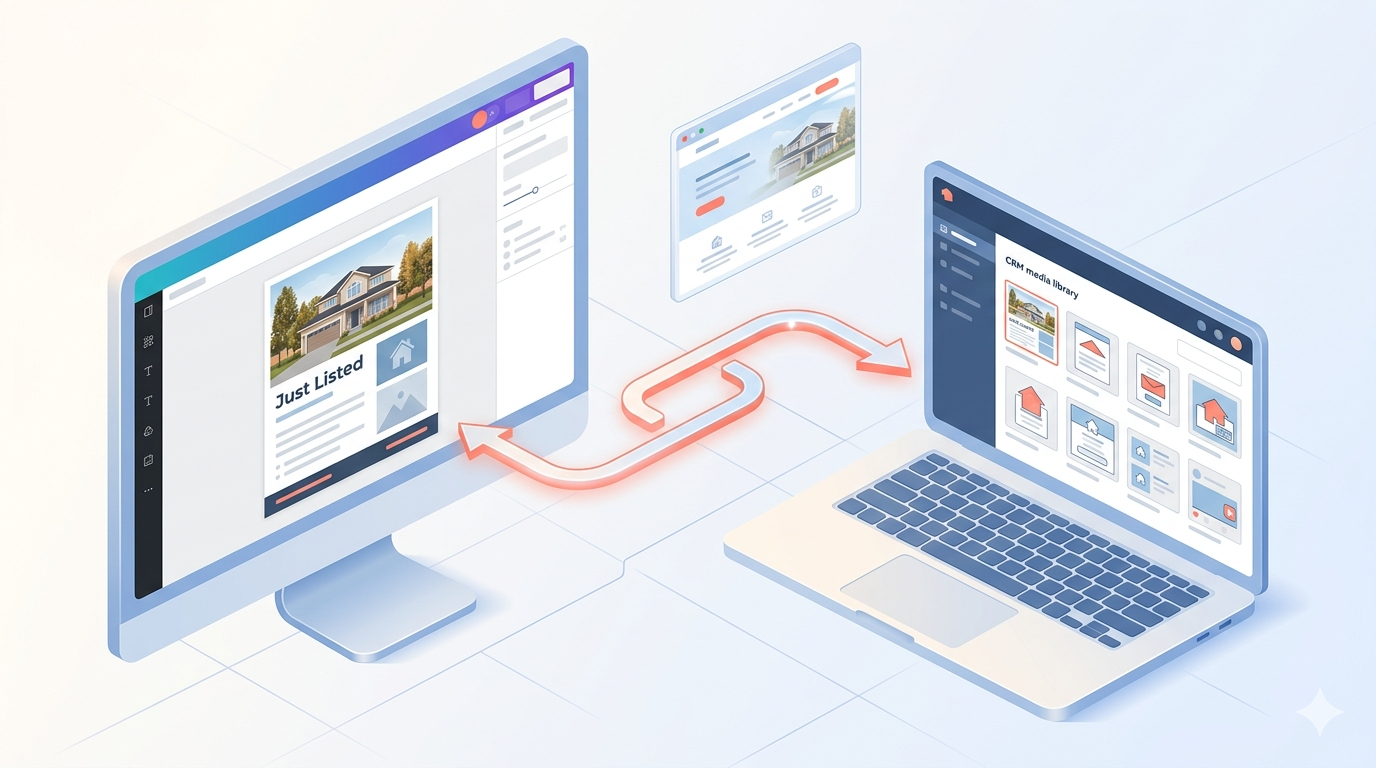
If you have ever designed a "Just Listed" graphic in Canva, downloaded it to your laptop, then re-uploaded it into your CRM so you can drop it into a buyer email, you already understand the problem this integration solves. The Canva integration inside AgentMoves connects your Canva account to your AgentMoves Media Storage so you can browse, edit, and pull designs straight into the platform.
For real estate agents, this means fewer tabs, fewer duplicate files clogging up your media library, and a much faster path from "I need a flyer for tomorrow's open house" to "the flyer is live in my email campaign."
This is especially useful for:
Solo agents who design their own listing flyers, social posts, and buyer guides and want everything in one place.
Team owners who need consistent branding across every agent on the team and want a single source for marketing creative.
Team operators and VAs who manage day to day marketing and spend a lot of time moving images between Canva, the CRM, and email tools.
What the integration actually does
Once you connect Canva to your AgentMoves location, you get a dedicated Canva tab inside Media Storage. From there you can:
Browse your existing Canva designs without leaving AgentMoves.
Import any design directly into your AgentMoves media library with one click.
Open a previously imported design back in Canva, edit it, and bring the updates back into the platform.
Use those imported designs across your funnels, email campaigns, workflows, and social planner posts.
The integration also tracks each Canva design ID behind the scenes. That means when you edit a design you have already imported, AgentMoves reopens the same Canva file instead of creating a duplicate. No more cluttered media library full of "Open House Flyer FINAL," "Open House Flyer FINAL v2," and "Open House Flyer FINAL FINAL."
Benefits at a glance
Faster turnaround on listings. Get a flyer or social post from concept to campaign in minutes instead of bouncing between platforms.
One source of truth. Every team member pulls from the same media library, so your buyer guide looks the same in your nurture sequence and your seller presentation.
Cleaner version control. The smart re-open behavior keeps your edits tied to the original file.
Reusable assets. Design once, then drop the same graphic into a landing page, a follow up email, and a social post.
Supported file types and a few things to keep in mind
The integration handles standard static image formats well, including PNG and JPEG, which covers the vast majority of real estate marketing creative. For animated content like GIFs or short MP4 clips (think property reels or animated price drop graphics), you may need to export those directly from Canva and upload them into AgentMoves manually.
It is also worth thinking about Canva licensing. If your design uses premium Canva elements such as paid stock photography or pro illustrations, make sure your Canva account has the correct license for client and commercial use. This matters most when team owners or VAs are designing marketing pieces that will be used across multiple agents or sent to leads.
Step by step: Connect Canva to AgentMoves
Here is the basic setup. You only need to do this once per location.
Inside AgentMoves, go to Media Storage for the location you want to link Canva to.
Click the Canva tab inside Media Storage and select Connect. If you do not see the tab, check the Apps marketplace inside AgentMoves to install the Canva integration.
A Canva login window will pop up. Sign in with your Canva credentials and approve the permissions so AgentMoves can read and import your designs.
Once you authorize the connection, your Canva designs will populate inside the Canva tab in Media Storage. From here you can browse, open, edit, download, or import any design.
That is the whole connection process. Most agents have it running in under five minutes.
How to use Canva designs inside AgentMoves
After the connection is live, there are three common ways to actually use your designs:
Import into Media Storage. Pick a design, click Import, and it shows up in your media library, ready to use anywhere in AgentMoves.
Download and upload manually. If you need a very specific export from Canva, like a transparent PNG for a logo or a print quality file, download from Canva first and upload to AgentMoves the traditional way.
Edit from media. Once a design lives in your AgentMoves media library, you can click Edit to reopen it in Canva. AgentMoves remembers the design ID and pulls up the same Canva file you imported, so your changes stay tied to the original.
Once a design is in Media Storage, real estate agents can use it inside:
Funnels and landing pages (think buyer registration pages, seller valuation pages, IDX squeeze pages)
Email templates and drip campaigns (welcome sequences, nurture campaigns, listing alerts)
Workflow actions that send images or attach media (automated follow ups after showings, post close gift card delivery)
Social planner posts for "Just Listed," "Just Sold," open house promos, and market updates
Editing and version control: what to expect
The Canva editor opens in a new tab so you can keep your AgentMoves session active while you make changes. A few behaviors are worth knowing:
Smart re-open: Editing a design that was imported through Media Storage reopens that exact Canva file. You will not end up with three slightly different versions of the same flyer floating around.
New designs create new entries: If you build a brand new design in Canva and import it, it will be added as a new file in Media Storage.
Updates do not auto-replace exports: This is the one most people miss. If you edit a Canva design after exporting it, the previously imported version inside AgentMoves does not automatically update. You need to re-import or re-download the new export to refresh the file your funnels and emails are using.
Multi user behavior, accounts, and limits
A few practical notes for teams:
One Canva account per location. Each AgentMoves location can be linked to one Canva account at a time. If you run multiple brands or sub teams under different locations, you can connect a different Canva account to each.
User access follows AgentMoves permissions. Anyone with access to the location can browse and use the connected Canva designs based on their AgentMoves user permissions. Admin level access is usually needed to install or change the integration.
Switching accounts is straightforward. To change which Canva account is connected, disconnect the current one from the Canva tab in Media Storage, then go through the connection flow again with the new credentials.
Troubleshooting common issues
If something is not working when you connect or import, run through this list first:
Pop up blockers. Canva uses a pop up window to authorize the connection. Allow pop ups and third party cookies during this step.
Canva account permissions. Some Canva for Teams setups restrict third party app access. Check with your Canva account admin if the OAuth flow is failing.
AgentMoves user role. Confirm your AgentMoves user has permission to manage apps and integrations for the location you are working in.
File type problems. If a specific design will not import, export it as a static PNG or JPEG from Canva and upload manually as a fallback.
Sync delays. Occasionally there is a lag before a design shows up. Refresh the media library after a minute or two.
Best practices for real estate teams
The agents and teams who get the most out of this integration tend to follow a few habits:
Use clear naming conventions. Something like ListingAddress_Flyer_Date or AgentName_BuyerGuide_2026 makes it easy to find files later. This is especially important for VAs and operators managing creative for multiple agents.
Mirror your folder structure. Keep your Canva folders and your AgentMoves media folders organized in similar ways so anyone on the team can find the right file quickly.
Maintain a master brand library. Save logos, headshots, brand colors, and recurring graphics in one core folder so the team always pulls from the same source.
Assign one person to manage the Canva connection per location. Usually this is the team owner, operator, or lead VA. It avoids confusion about which Canva account is connected and who is responsible for licensing.
Document your process. A short SOP that walks new agents or VAs through the import and edit flow saves hours of training time later.
Real estate use cases that work well
To make this concrete, here are a few of the most common ways AgentMoves clients use Canva inside the platform:
Listing marketing. Build "Just Listed" and "Just Sold" graphics in Canva, import them into Media Storage, and drop them into your social planner and email campaigns.
Open house promotion. Design open house flyers and digital invitations, then attach them to email blasts and SMS workflows targeting your sphere or a specific neighborhood farm.
Buyer and seller guides. Create branded PDFs or graphics and import them so they are ready to send through automation when a new lead converts.
Drip campaign visuals. Update banners and headers across long running nurture sequences without rebuilding the email.
Ad creative for lead generation. Quickly import several variations of an ad creative for testing across different audiences or neighborhoods.
Quick checklist before you go live
Before you start using the integration on real client work, run through this:
Confirm your Canva account license covers any premium elements you plan to use.
Decide on a naming convention with your team.
Choose who will own the Canva connection per location.
Test the flow by importing a sample design, editing it, and re-importing the update.
Walk your team or VA through editing from Media Storage so everyone benefits from the smart re-open behavior.
Mistakes to avoid
A few patterns slow people down. Watch for these:
Connecting a personal Canva account to a team location. When that team member leaves, ownership of the creative goes with them. Use a team or business Canva account instead.
Assuming Canva edits update your live emails automatically. They do not. Re-import after every meaningful change.
Using premium Canva assets without checking the license. Especially for team accounts where multiple agents might use the same graphic.
Letting everyone follow their own workflow. Standardize how designs move from Canva into AgentMoves so the whole team is consistent.
When to disconnect or relink Canva
There are a few situations where it makes sense to disconnect and reconnect:
You need to switch the connected Canva account, for example when moving from a personal account to a team account.
You are running into persistent authorization errors that a fresh connection might resolve.
A team is being handed off, sold, or restructured and creative ownership needs to change hands.
Getting started
The fastest way to get value from this integration is to pilot it on one piece of marketing. Connect Canva to your AgentMoves location, import a couple of your most used graphics, edit one of them, and re-import the update. Once you have walked through the full loop, write a short internal SOP for your team or VA and roll it out to the rest of your marketing assets.
The recommended workflow looks like this:
Connect Canva to your AgentMoves location.
Import your core brand assets and apply consistent naming.
Edit designs through the Edit action in Media Storage to keep design IDs tracked.
Re-import updated exports whenever you make meaningful changes.
Document the process so your team and VAs follow the same flow.
Frequently asked questions
Can multiple users on my team access the same Canva account through AgentMoves? Yes. When a Canva account is connected to your AgentMoves location, anyone with access to that location can browse and import designs based on their AgentMoves permissions. Just keep in mind that only one Canva account can be linked per location at a time.
If I update a design in Canva, will it automatically update inside AgentMoves? No. Saving an edit in Canva does not automatically replace the version that lives in your AgentMoves Media Storage. Use the Edit action from the media library to reopen the original design, then re-import or re-download the updated file to refresh it inside the platform.
What file formats does the integration support? Standard static formats like PNG and JPEG work cleanly. For animated content like GIFs or short MP4 clips, or for special exports like transparent PNGs or print ready PDFs, you may need to export from Canva and upload to AgentMoves manually.
How do I change which Canva account is connected to my AgentMoves location? Go to Media Storage, open the Canva tab, and choose Disconnect. Then run the connection flow again with the new Canva credentials. You will need the right AgentMoves permissions to manage integrations for that location.
What should real estate teams watch out for with Canva licensing? Make sure any premium Canva elements you use in client facing or commercial materials are covered by your account license. Track which assets are paid versus free, and lean toward team or business Canva accounts when multiple agents will be using the same creative. This avoids ownership and licensing problems if a team member leaves.