
How to Optimize Your Google Business Profile
Your Google Business Profile is often the first thing people see when they search for an agent in your area, and AI search tools pull from it when they recommend one. In AgentMoves you can fill in and update the whole profile from one screen. This guide covers what to enter in each field and which parts you need to make your own.
Connect your Google Business Profile first. If you haven't yet, follow How to Set Up Reviews, Part 1.
Open GBP Optimization
Go to Reputation, then GBP Optimization. Pick your profile in the drop-down at the top right. The score bar shows how complete your profile is. Aim for 16/16. Click the pencil icon next to any field to edit it.
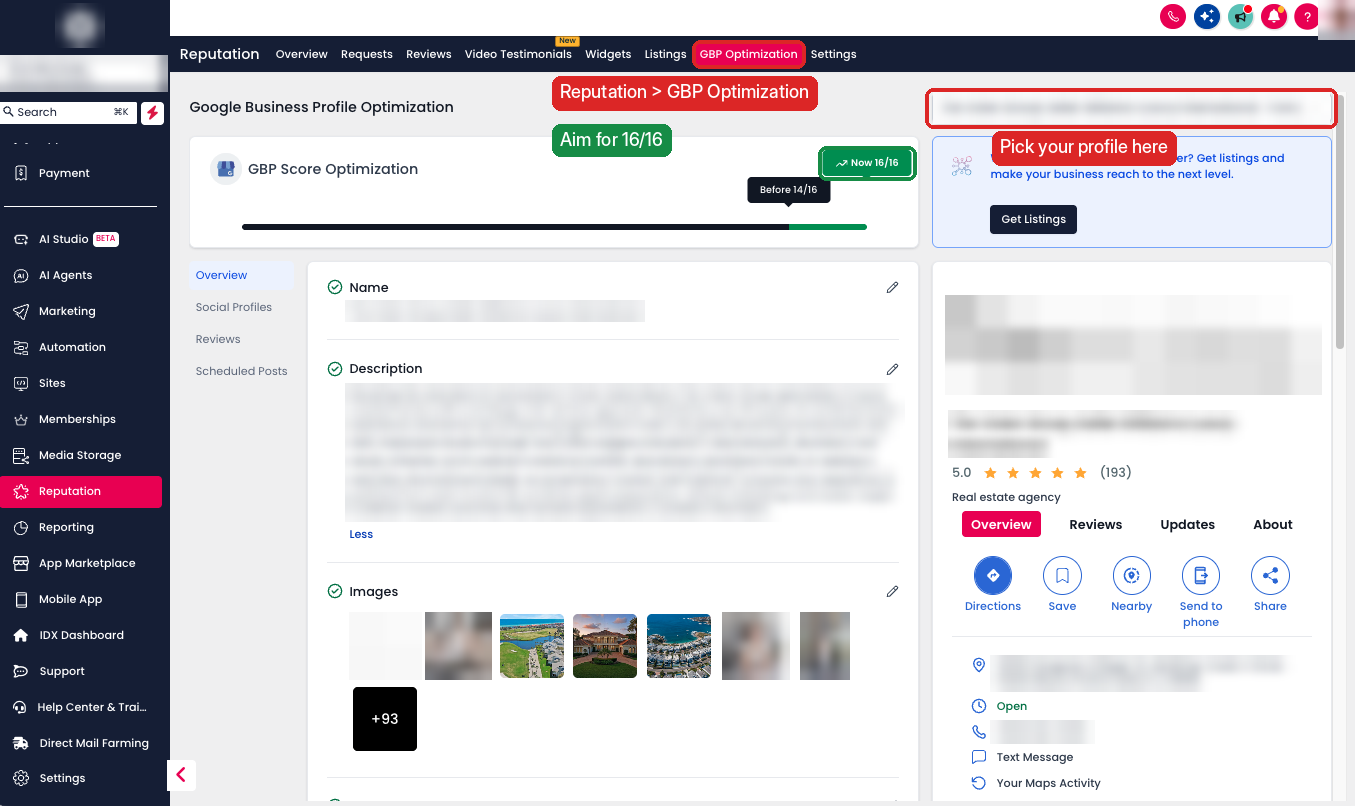
Name
Enter your business name exactly as it appears on your signage, business cards, and website. Don't add your city or words like "best realtor." Google's guidelines don't allow extra keywords in the name, and it can suspend a profile that adds them.
Description
You get 750 characters. The first two sentences show before someone clicks More, so put who you are, what you do, and where you work up front. Google doesn't allow links, prices, or promotions here.
Copy the prompt below into ChatGPT, Claude, Gemini, or whichever AI tool you like. Fill in your details at the bottom first. Pick the version you like best and paste it into the Description field.
Write a Google Business Profile description for my real estate business.
Rules:
- Between 600 and 750 characters, counting spaces. Google cuts it off at 750.
- Put the most important information in the first two sentences: who I am, what I do, and the main city I serve. That is what shows before someone clicks More.
- Name my main city and up to three nearby areas I serve.
- Mention the services I offer and the clients I help, using the words people type into Google when they look for an agent.
- Write plain, complete sentences that someone could read out loud. AI search tools quote sentences like these when they recommend an agent.
- Use only the facts I give you. Do not invent awards, numbers, or claims.
- Follow fair housing rules. Describe homes and areas, never the people who live there.
- No links, phone numbers, email addresses, prices, promotions, hashtags, emojis, or ALL CAPS.
- Do not repeat the same keyword over and over.
My details:
- Business name, exactly as it appears on Google:
- Brokerage:
- Main city:
- Nearby areas I serve:
- Services I offer:
- Clients I help most:
- Years of experience:
- What makes my approach different:
- Words clients often use about me in reviews:
Write two versions and show the character count for each.
Images
Add your logo, a clear headshot or team photo, your office inside and out, photos of the neighborhoods you serve, and homes you've listed or sold. Keep adding new photos over time so the profile stays fresh.
Phone number and chat
Phone Number: the main number you answer.
Chat (WhatsApp/Text Message): your AgentMoves number, so texts from Google land in your AgentMoves Conversations.
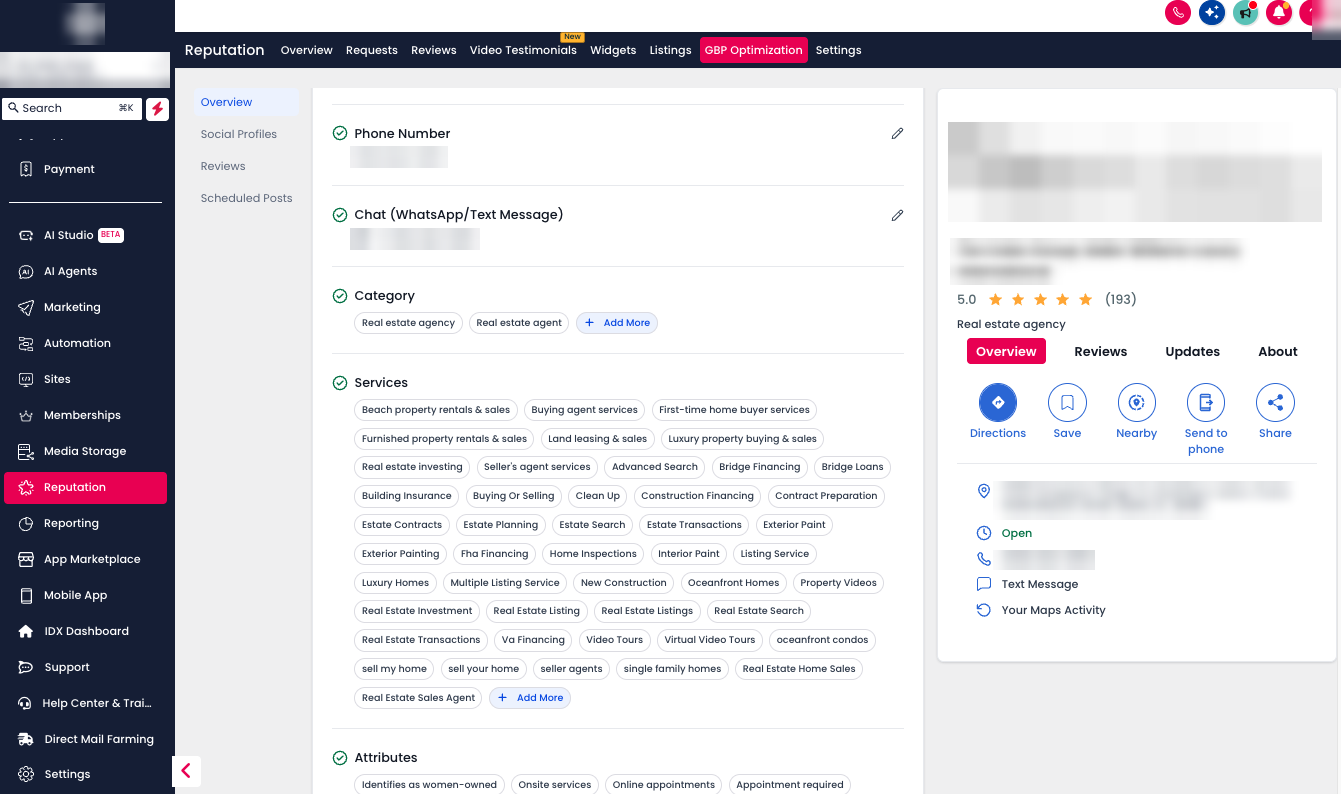
Category
Your first category matters most. Choose Real estate agent if you're an agent or team. Choose Real estate agency if you run a brokerage office. Google asks you to use as few categories as possible and only ones that describe what your business is.
Services
Google gives you a set of ready-made services for real estate. Pick these:
| Service | Pick it if |
|---|---|
| Seller's agent services | Always |
| Buying agent services | Always |
| First-time home buyer services | You work with first-time buyers |
| Luxury property buying & sales | You sell luxury homes |
| Real estate investing | You help investors |
| Land leasing & sales | You sell land or lots |
| Beach property rentals & sales | You work a coastal market |
| Furnished property rentals & sales | You handle furnished rentals |
Then click Add More and type in these custom services. Add each one you actually offer:
- Home valuation
- Listing service
- Downsizing
- Relocation
- New construction
- Condo sales
- Inherited and probate home sales
- Investment property sales
- Your specialty, such as waterfront homes, golf communities, or acreage
Leave out anything you refer to someone else, such as financing, insurance, inspections, or painting. Google wants services your business provides.
Attributes
Pick the ones that are true for you:
| Attribute | Pick it if |
|---|---|
| Online appointments | You meet clients by Zoom or phone |
| Onsite services | You go to the client's home |
| Appointment required | Your office doesn't take walk-ins |
| Wheelchair accessible entrance | Your office has one |
| Wheelchair accessible parking lot | Your office has one |
| Ownership attributes, such as women-owned or veteran-led | Optional. Only if true and you want it shown |
If you hid your address because you don't have an office clients visit, skip the wheelchair and appointment attributes.
Address
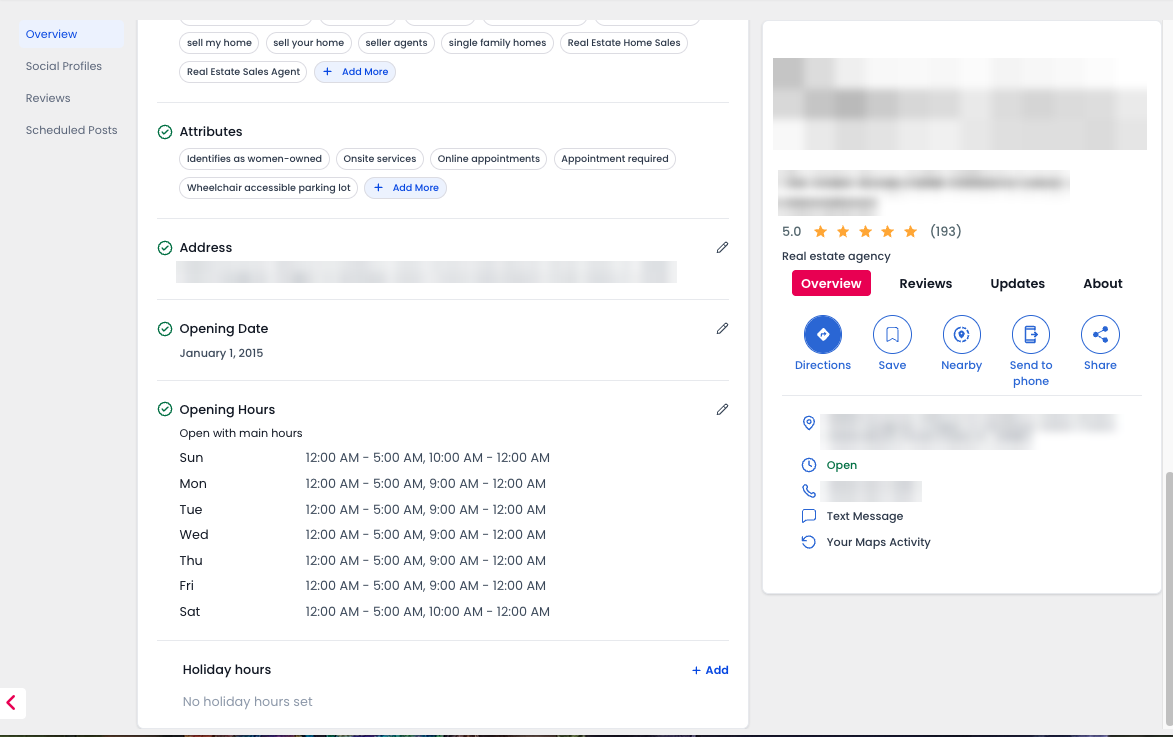
If clients can visit your office and it's staffed during your hours, enter that address. If you work from home or meet clients at their homes, hide your address and set a service area instead. Google asks service areas to stay within about two hours' drive of your base.
Opening date
The date you started your business. Google uses it to show how long you've been serving the area.
Opening hours and holiday hours
Enter the hours someone actually answers your phone. Don't set your hours to almost 24 hours a day just to show Open. Google asks for real customer-facing hours, and a client who calls at 2 AM and gets no answer won't call back. Add holiday hours before each holiday so Google shows you correctly.
Social Profiles and Scheduled Posts
Click Social Profiles on the left and add links to your Facebook, Instagram, LinkedIn, and YouTube. Use Scheduled Posts to post market updates, new listings, and events to your profile on a regular schedule. An active profile tells Google you're open for business.
For the full rules, see Google's Guidelines for representing your business on Google.